


WebTextEditor can be integrated in FormView control.
In this topic, you will learn how to integrate WebTextEditor in FormView.
To integrate WebTextEditor in FormView
- Create a FormView with bounded customer data from Northwind.mdb.
- In EditItemTemplate and InsertItemTemplate, drag the WebTextEditor instance from the Toolbox to the EditItemTemplate FormView.
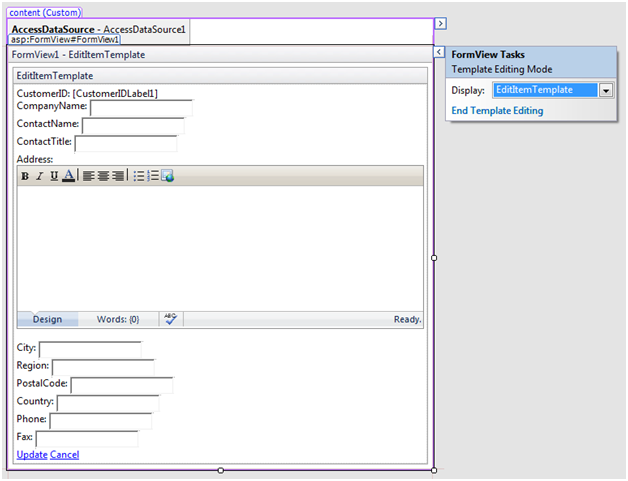
- Set the EnableHTMLView property to false and EnableSplitView property to false under ViewSettings; ToolbarMode property to Minimal under ToolbarSettings; Enabled property to False under TaskPaneSettings >> MediaGallery, for both WebTextEditor in order to have a simpler look.
- Set the content property in WebTextEditor to bind the FormView field in the source view. Here is the snippet:
<ISWebTextEditor:WebTextEditor ID="WebTextEditor1" runat="server" Height="200px" Width="500px" Content='<%# Bind("Address") %>'>
    <TaskPaneSettings>
        <MediaGallery Enabled="false" />
    </TaskPaneSettings>
    <ViewSettings EnableHTMLView="false" EnableSplitView="false" />
    <ToolBarSettings ToolBarMode="Minimal" />
</ISWebTextEditor:WebTextEditor>
 See Also
Tasks
{How-to: Use WebTextEditor as Item Template of Details View}
Other Resources
{Data Binding}